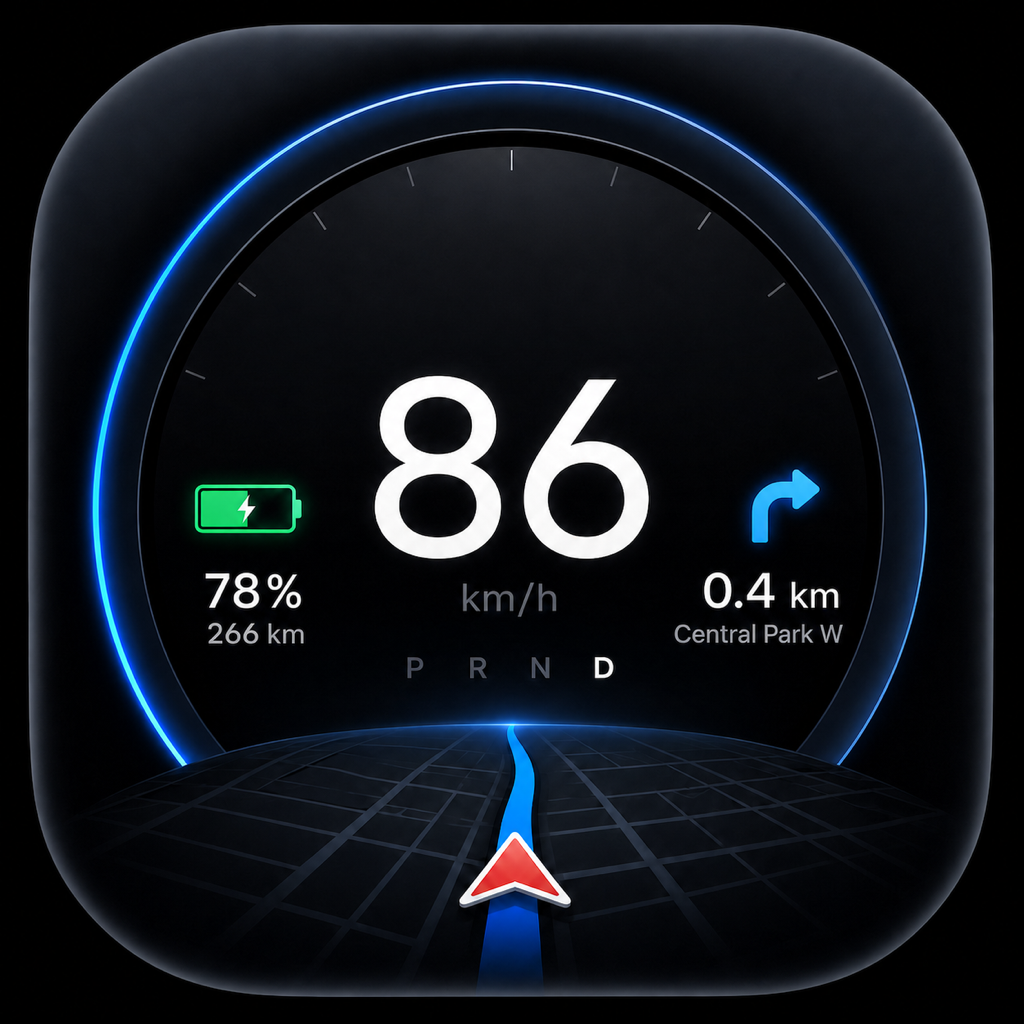
With 1.1.22 you download the map for the countries you drive in, and it runs without internet too. An assistant builds your own cockpit in a few steps, 15 look families give it its style, and the GPS speed now reacts at once. On top of that, the map can show the whole route.
What's new
The update is for iPhone and Android. Offline maps, the view with a route and the live GPS speed are free for everyone. The assistant, the new looks, the toolbox and the larger lettering are part of your own cockpits and therefore of Premium. GPS with the phone locked and the drawn turn graphics in every cockpit are iPhone only.
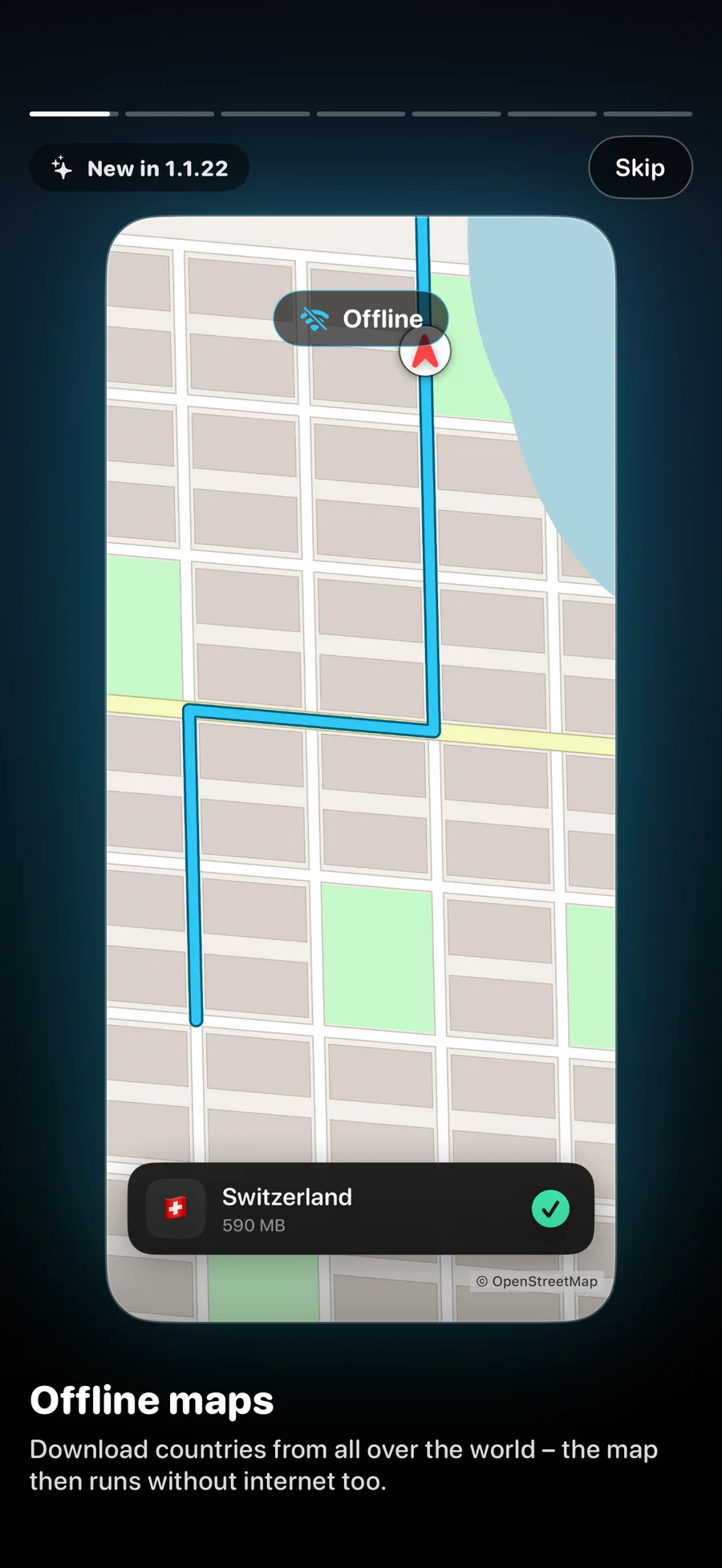
Offline maps
The map, without internet too.
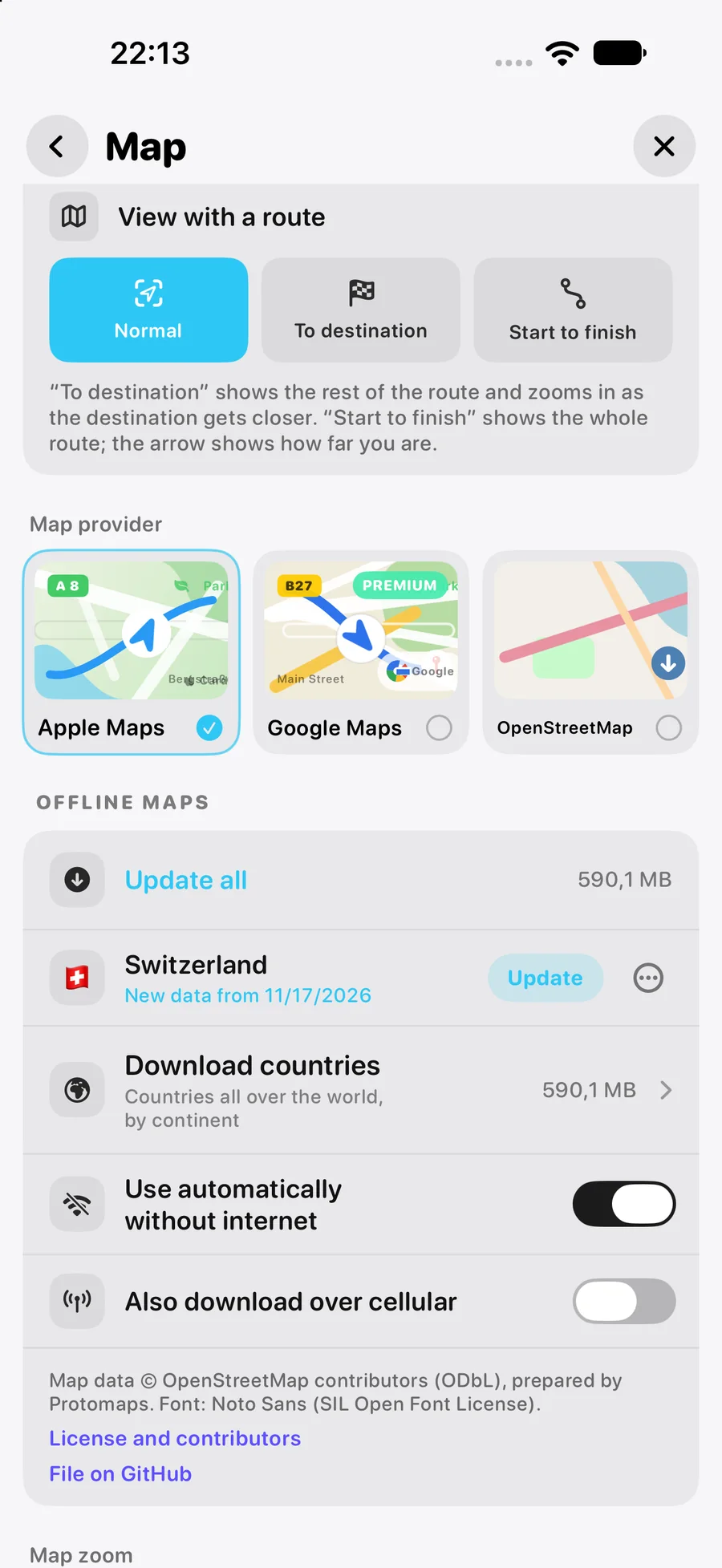
Under Settings › Map › Offline maps you download the countries you drive in. The maps come from OpenStreetMap, are free and cover every continent. Large countries are split into regions, so you only download what you need.
The offline map shows every detail: roads, names, buildings and woods, plus your route and your vehicle. You can pick OpenStreetMap as your map for good. With “Use automatically without internet”, the offline map steps in by itself as soon as the internet drops out.
Free, from OpenStreetMap
Countries on every continent, large countries in regions
Downloads in the background, normally over Wi-Fi only
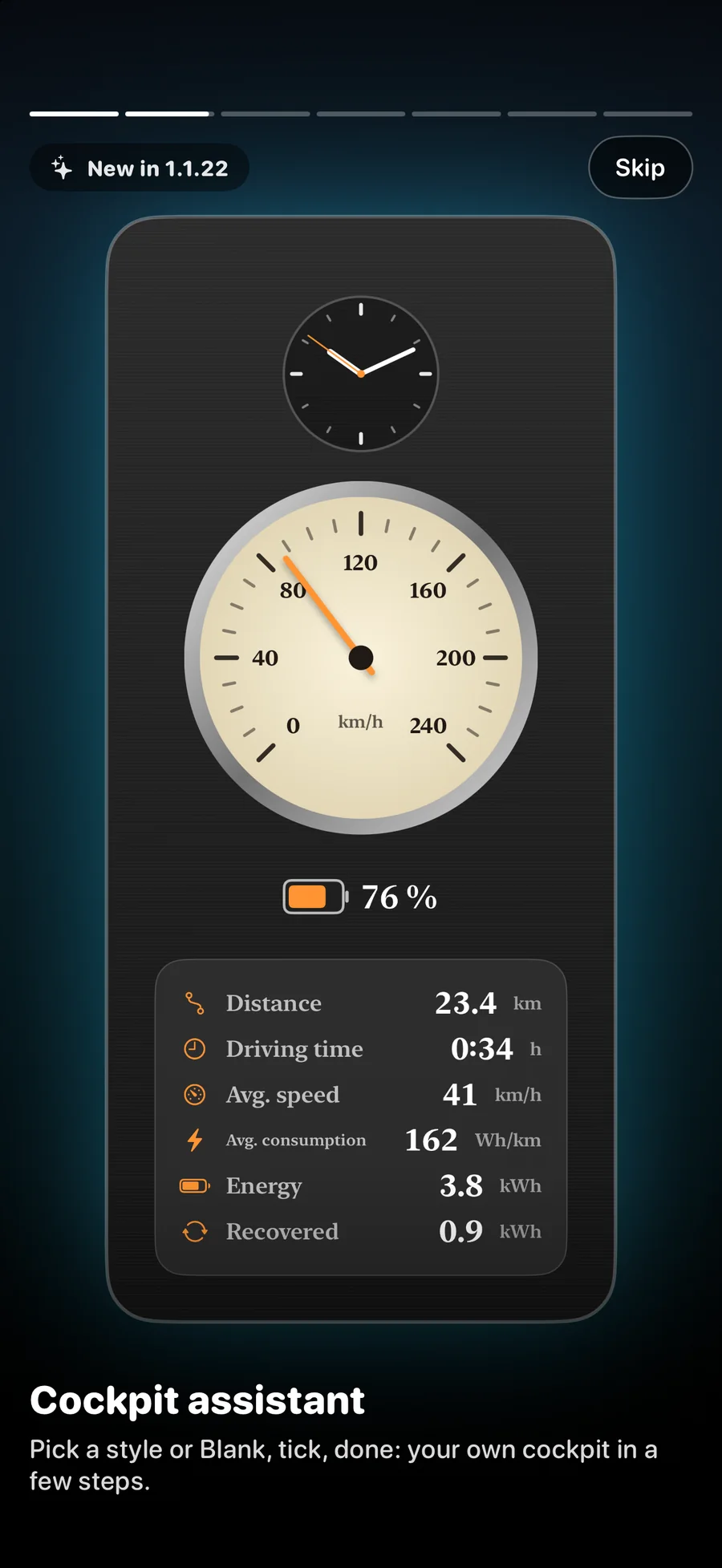
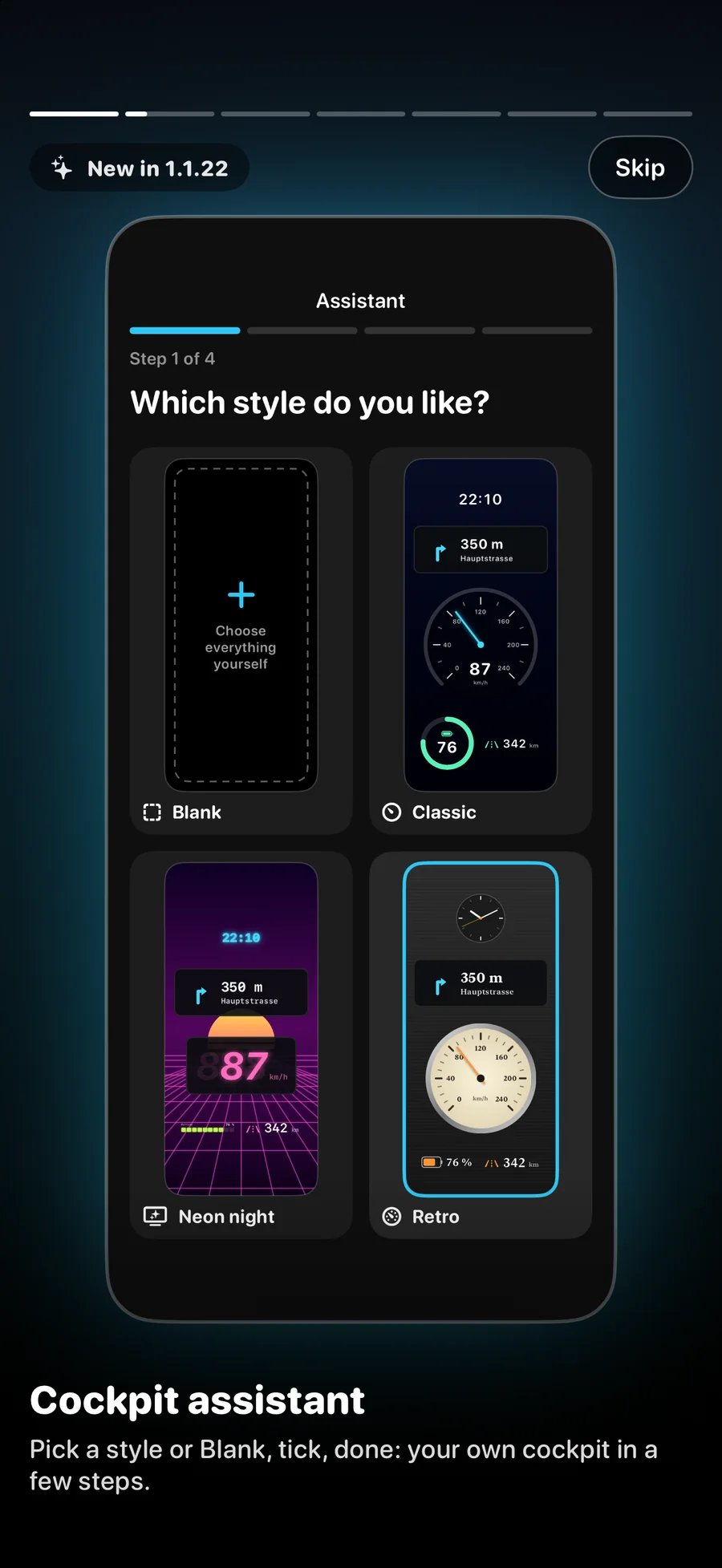
“Create cockpit” now starts with “With the assistant”. First you pick a style, for example Classic, Neon, Retro or Luxury. There are 31 styles. With “Blank” you decide everything yourself.
Then you tick what your cockpit should show, such as speed, clock, battery, range, navigation or the trip computer. In the next step you choose what to show while charging, for example charge level, charging power and time remaining. If you pick nothing there, the driving page stays while charging.
In “Final touches” you see your cockpit upright and sideways, while driving and while charging. Tap an element and swipe to pick a different look. Then the cockpit opens in the editor, and you can keep changing everything.
31 styles or “Blank”
Contents to tick, the trip computer too
A page of its own for charging
Preview upright and sideways
Looks
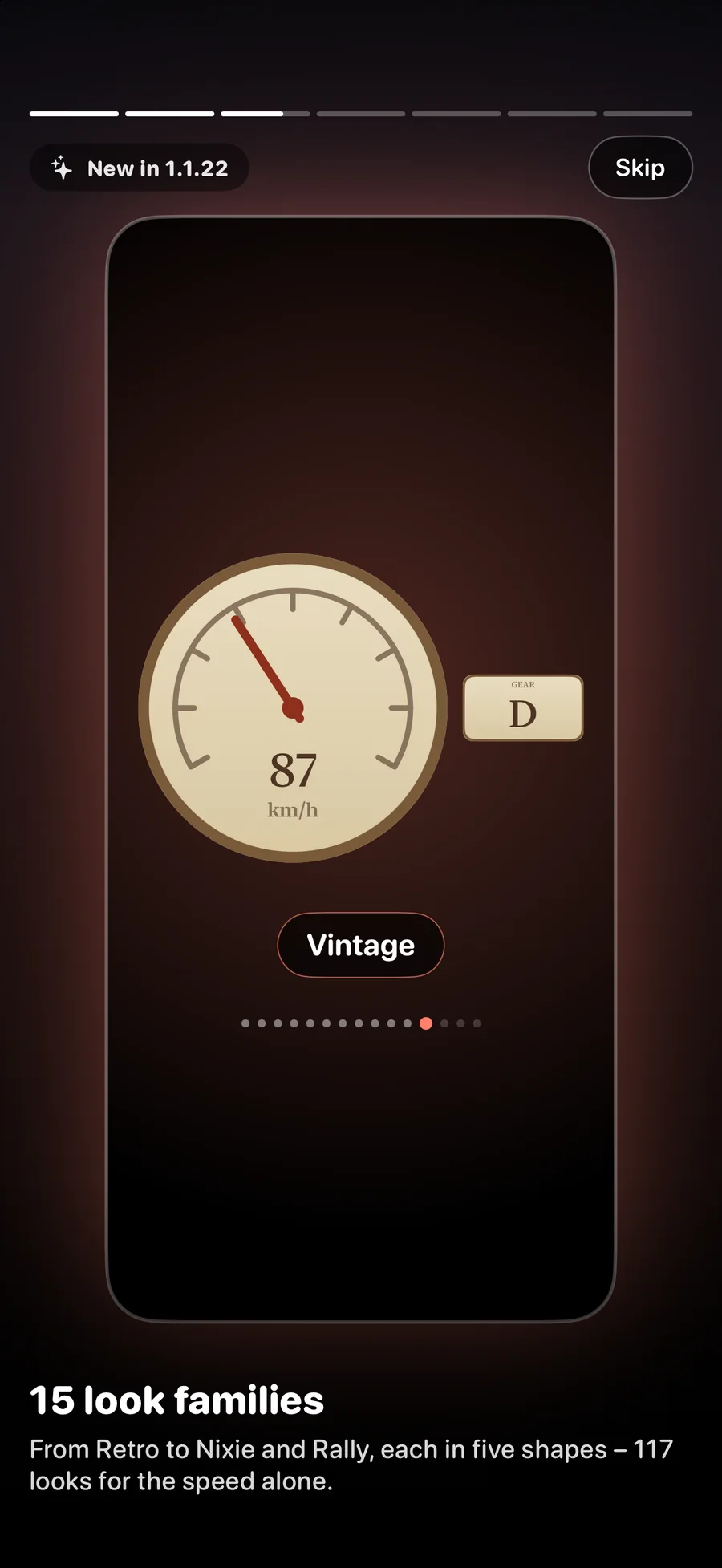
15 look families in five shapes.
Retro, Modern, Classic, Sport, Luxury, Neon, LCD, Nixie, Minimal, Chrome, Carbon, Vintage, Cyber, Glass and Rally: each family has its own surface, font, colour and frame. Each comes in five shapes: Digital, Dial, Ring, Bar and Tile.
The families are there for 30 pieces, from speed, gear, clock, battery and range to every charging value. Speed alone now has 117 looks instead of 42, the gear 85 instead of 10.
When you choose a look, you can filter by family and by shape: round, wide or tall.
Toolbox
The right piece, faster.
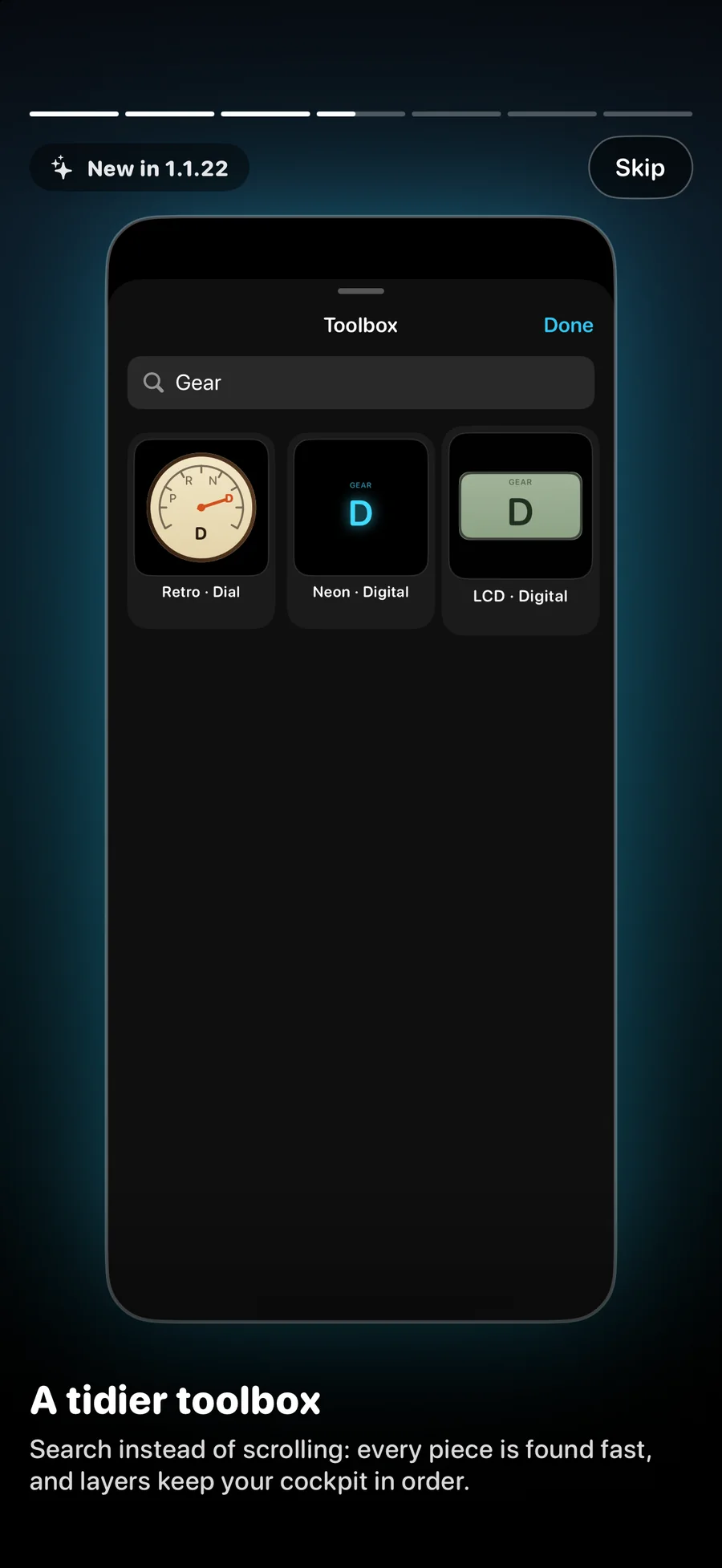
The toolbox now has a search. Type “Gear”, for example, and you see every matching piece. They are sorted into three rows, Values, Design and Whole cockpits, with groups to tap. “Recently used” shows the eight pieces you took last.
Tap a piece to see its looks in large and take one with “Add”. Background, font, colours and frames now sit together in the “Style” sheet.
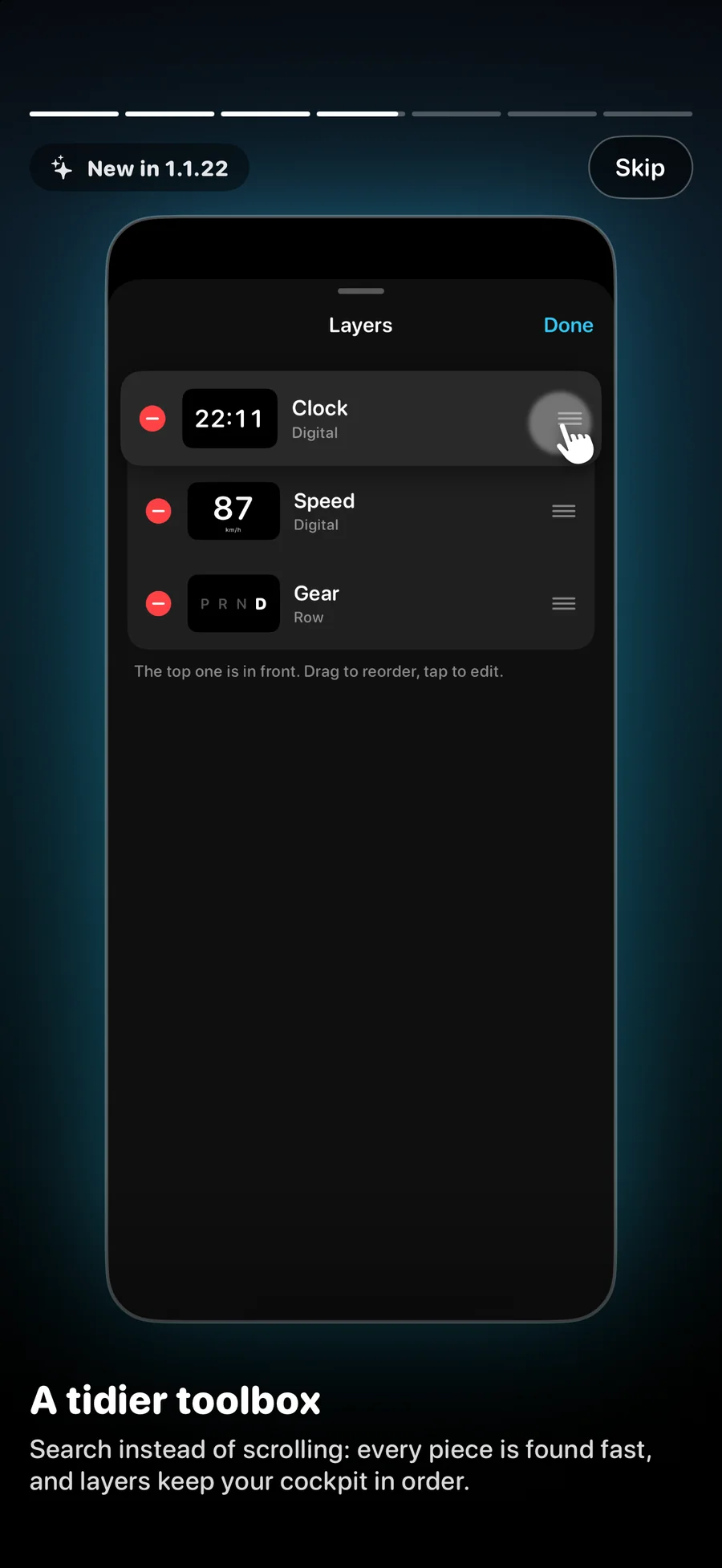
Under “Layers” you see every piece of your cockpit, the frontmost at the top. There you select one, reorder them or delete them. The bar is shorter now: grid and minimize are under “More”.
Search by name or group
“Recently used” with eight pieces
One “Style” sheet for background, font and colours
“Layers” to keep things in order
Lettering
Larger lettering, up to 200 %.
In your own cockpits, every element's lettering can now grow up to 200 %, up from 130 %. That keeps speed, clock or battery easy to read from the phone mount.
The turn instruction wraps onto several lines instead of being tiny and cut off. If the whole sentence does not fit, the lettering gets smaller step by step. Only then is the text shortened.
Map
The whole route in view.
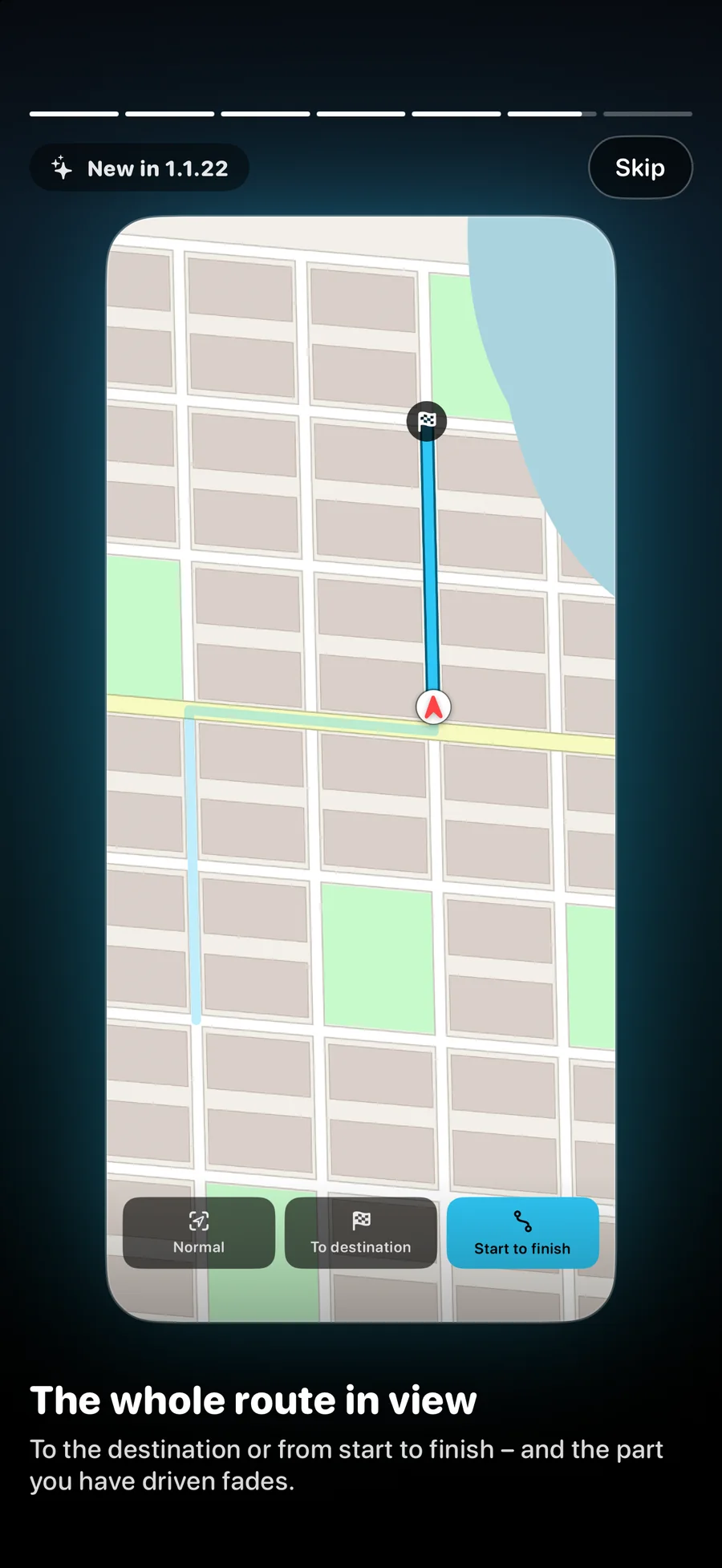
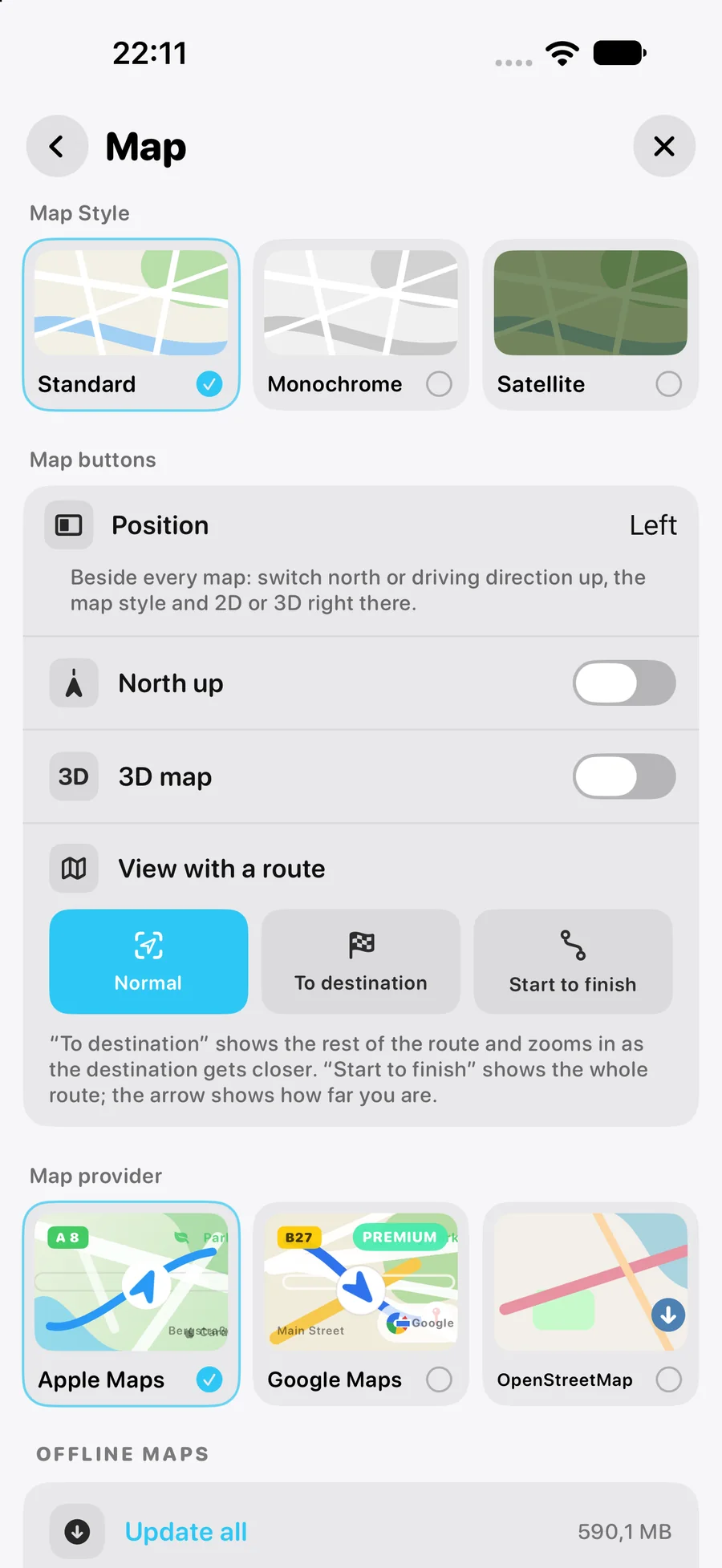
Under Settings › Map, right below “3D”, you choose the “View with a route”: “Normal” as before, “To destination” or “Start to finish”.
“To destination” shows your vehicle and the rest of the route. The closer the destination gets, the closer the map zooms in. “Start to finish” shows the whole route, and a smaller arrow shows how far you have come. Both overviews are flat and face north.
The part you have already driven fades. A fourth button on the map switches the view with every tap: Normal, To destination, Start to finish.
Normal, To destination or Start to finish
The part you have driven fades
A fourth map button to switch
In every cockpit with a map, your own cockpits too
GPS speed
A GPS speed that reacts at once.
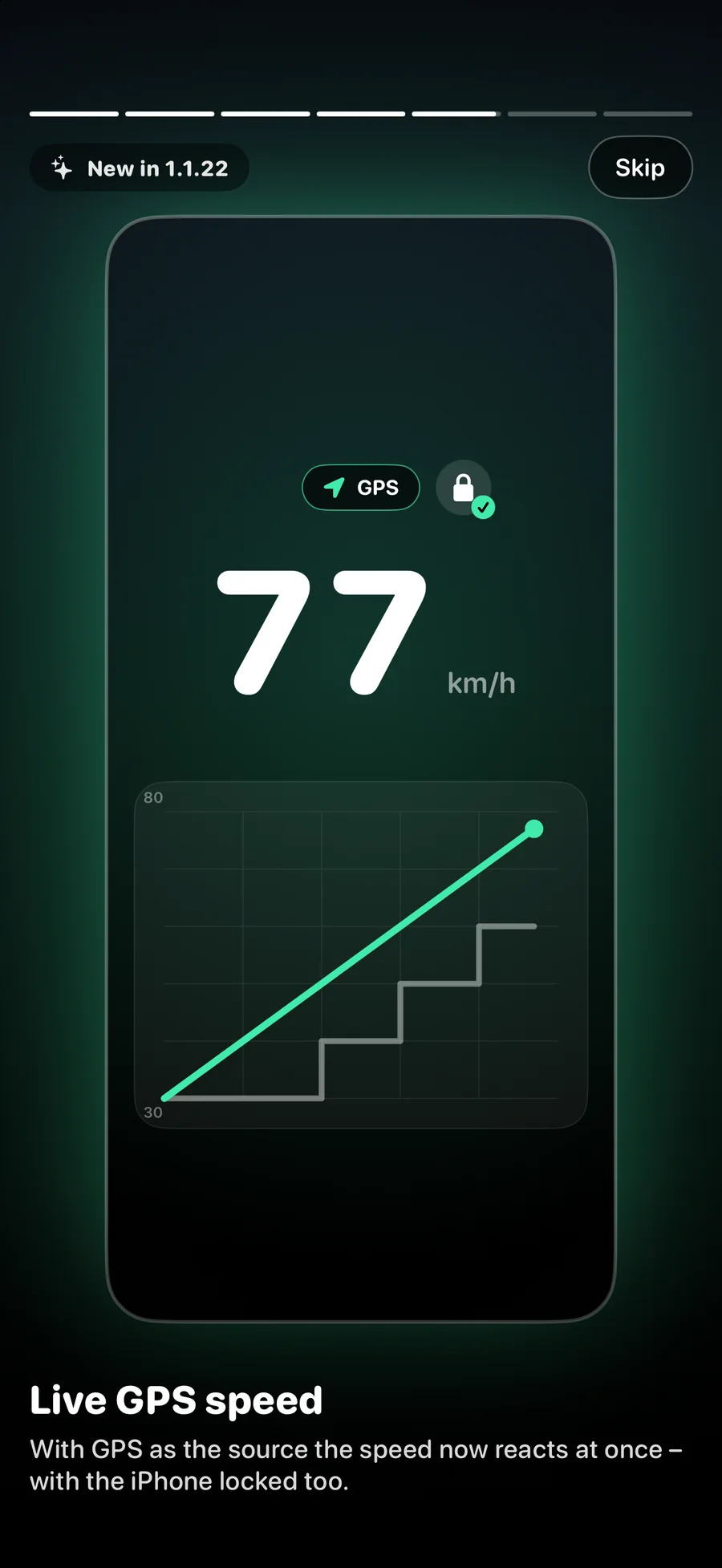
When Tespit takes the speed from GPS (Settings › Connection, “Where does the speed come from?”), it no longer waits for the next fix. GPS delivers about one fix per second, and it comes a little late. In between, Tespit carries the speed on 30 times per second with your phone's sensors.
Every new GPS fix corrects the value, and the match with your speedometer from 1.1.21 still applies. When you pull away or brake, you see the change at once. At a standstill the speed stays at 0.
In a tunnel, where GPS is off, Tespit shows the car's speed. On the iPhone, GPS keeps running during a drive while Tespit is in the background or the iPhone is locked. You then see the blue location indicator of iOS at the top.
Turn graphics
Drawn graphics in every cockpit.
1.1.21 brought the redrawn turn graphics with Apple Maps on the iPhone: roundabouts as a ring with exit and number, turns in the real shape of the junction. Now they are in every cockpit, including the “Journey” tile and the route card in the Standard cockpit, and in all navigation pieces of your own cockpits.
At a roundabout the exit is now a clear stroke before the arrowhead, and the number fits the ring better.
Fixes
What else gets better.
1.1.22 also fixes a few bugs.
Without internet, an outdated street name now disappears once you are more than 300 m further on, instead of staying on screen.
At a standstill the display no longer jumps back and forth between the GPS speed and the car's speed.
(iOS) Decimal numbers in the cockpits use the decimal separator of your language, in German for example 23,4 km instead of 23.4 km.
(Android) Pieces of your own cockpits show the colour you chose, as on the iPhone.
(Android) The trip computer shows all six values, upright and sideways.
Pictures: iPhone simulator with Tespit 1.1.22 and sample values, in German and English. Other languages show the English pictures.
Tespit 1.1.22 is here.
The update is now on the App Store and Google Play. Don't have Tespit yet? Download it here.